Astute FF Beta DPI Settings Guide for Better Aim
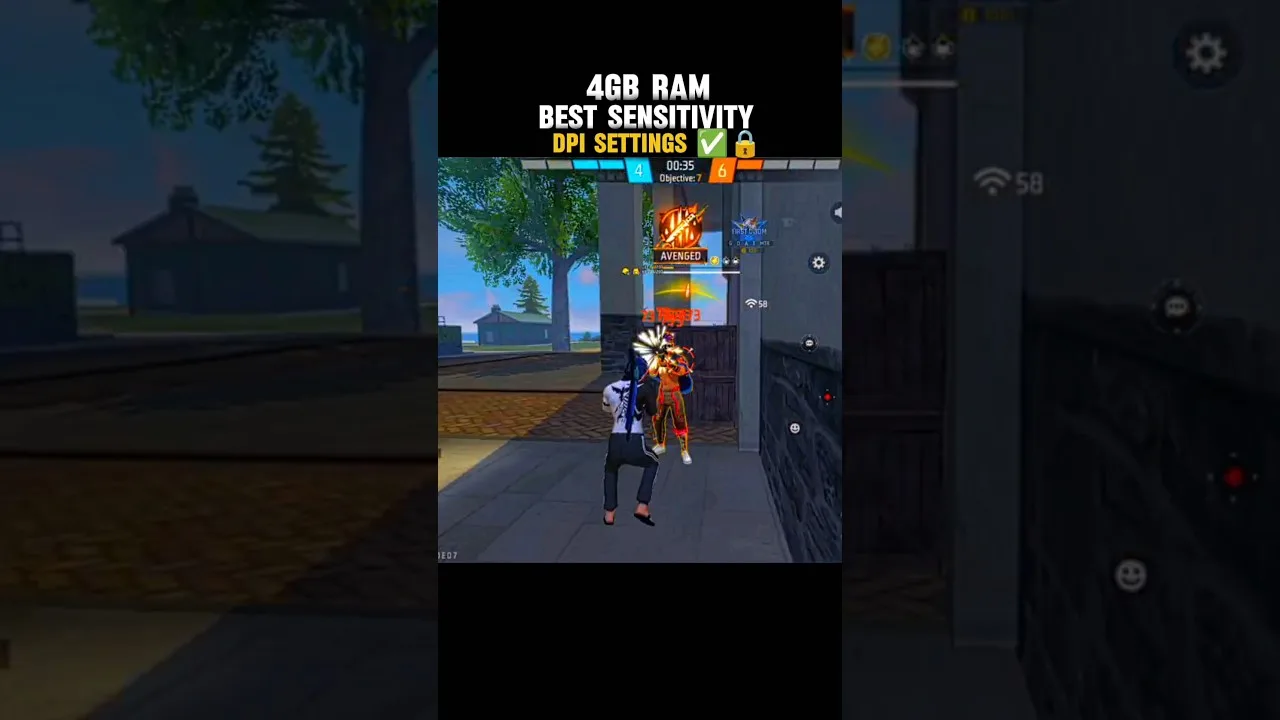
DPI, or dots per inch, describes how densely your Android phone renders its interface, and changing it alters how much movement your touches produce on screen. In Astute FF Beta, the right DPI can make drags feel lighter and headshots easier to reach.
Many players hear one high number and apply it to every phone, which is a mistake. DPI interacts with screen size, resolution and sensitivity, so the value that suits a large phone can feel uncontrollable on a small one. Start from your current setup in Astute FF Beta for Android phones and move gradually.
What Changing DPI Actually Does on Your Phone
Raising DPI makes interface elements smaller and increases the effective movement registered from your swipes, so the same thumb motion turns your view further. Lowering DPI does the opposite: elements grow, movement feels heavier, and fine control can become easier for players with fast hands.
Because DPI is a system-level display setting on many phones, it also affects other apps. Text may shrink, keyboards may resize, and some layouts can look cramped. That whole-phone effect is why DPI changes should be deliberate and reversible, never rushed.
Find and Record Your Default DPI First
Before changing anything, find your phone's current value and write it down. On many Android devices the setting lives in developer options as the smallest width value, which relates closely to display density. Recording the original number gives you a guaranteed way back.
Also note your in-app sensitivity values at the same time. If the new DPI feels wrong, you will want to restore both pieces together. Players who skip this step often end up lost between two half-remembered setups and blame the app for their own missing notes.
Safe Steps: Change a Little, Then Test
Increase DPI in modest steps rather than jumping to an extreme value. After each step, open the app, check that menus are readable, and spend several minutes in training. Test turning, red dot drags and scope control, because DPI affects all three, not only headshot attempts.
If aim suddenly feels too fast everywhere, lower your sensitivity slightly instead of abandoning the DPI change immediately. The balance described in Astute FF Beta sensitivity settings explained shows how the two settings share the work of controlling your crosshair.
DPI by Phone Size and Resolution
Smaller phones usually need gentler increases because their screens turn quickly already. Large phones with high-resolution displays can often handle a bigger step while keeping text readable. Tablets sit in a different category again, and most players are better served by sensitivity changes alone on a tablet.
Screen size also affects grip, thumb travel and button placement. If you play on more than one device, the advice in Astute FF Beta settings for different phone sizes will help you keep a separate, sensible DPI for each screen instead of forcing one number onto both.
Signs Your DPI Is Too High or Too Low
DPI is too high when your crosshair jumps past heads, scoped views shake under your thumb, and normal phone text becomes tiring to read. It is too low when drags feel like pushing through mud, turns need two swipes, and close fights are lost because you arrive on target late.
Use matches as a final check after training. A value that shines against stationary targets but collapses in real fights is not the right value yet. Judge DPI over several sessions, because the first hour with any new setting always feels strange.
When to Leave DPI Completely Alone
If your aim already feels controlled and your phone is shared, old or low on storage, leaving DPI untouched is a respectable choice. Sensitivity alone can deliver most of the improvement players want, without changing how the whole phone looks and behaves.
Players on very small screens should be especially careful. A modest sensitivity routine, a clean screen and a comfortable grip often outperform an aggressive DPI change. The goal is consistent aim you can repeat under pressure, not the biggest number you can copy.
DPI Myths Worth Ignoring
Two DPI myths cause a lot of wasted effort. The first is that a higher number is always better, which ignores how quickly control collapses once the value outruns your thumb. The second is that one secret number works for every phone, which ignores screen size, resolution and the sensitivity settings sitting underneath it. Both myths survive because they promise a shortcut where only testing can give a real answer.
A better belief is boring but true: your best DPI is the highest value at which your drags still stop where you intend, your scoped aim stays calm, and your phone remains comfortable to read and use all day. That value is discoverable in a single careful afternoon of step-by-step testing, and once found, it tends to stay right for as long as you keep the same phone.
If you share your phone with anyone else, warn them before you experiment with DPI, because the whole interface will look different the next time they pick it up. Smaller text and tighter spacing can confuse someone who was not expecting it, and they may change display settings back without telling you. A quick conversation turns a potential mystery, where your careful DPI work vanishes overnight, into a shared understanding, and it costs nothing beyond a moment of consideration for the other people who use the same device.
Final Thoughts
Treat DPI as a lever, not a shortcut. Record your default, move in small steps, balance the change against sensitivity, and test honestly in training and in matches. Done that way, DPI work inside Astute FF Beta can genuinely sharpen your aim while keeping your phone comfortable for everything else you do on it.